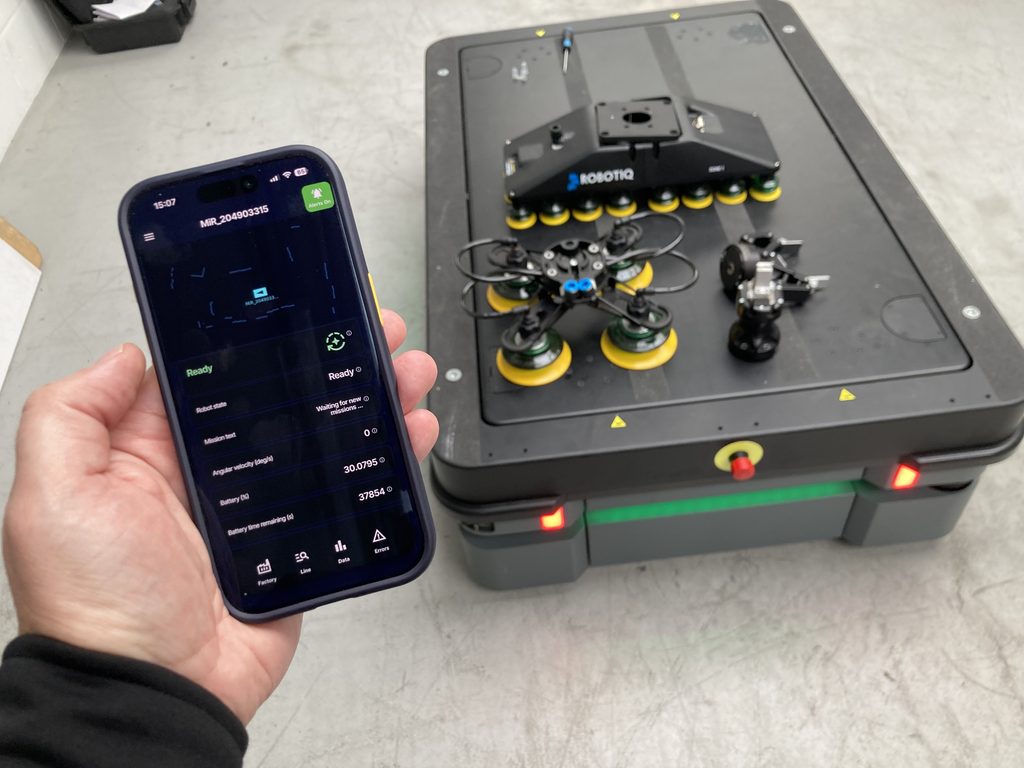

MiR robots are the easy way to move material around a factory. There are no wires in the floor and no fixed paths: you drive the robot round once, it maps the building, and from then on it finds its own way, avoids whatever is in the way, knows where its charging station is and knows what needs doing when. That flexibility is the whole point of an AMR, and it’s why they’ve spread so quickly, in logistics and warehousing as much as in manufacturing.
The point of an autonomous robot is that you leave it to get on with it, and MiRs do, reliably, shift after shift. What you don’t get is the confidence of knowing that. RoboVigil watches them so you don’t have to: every robot, where it is, what it’s doing and how much charge it has, on your phone, with a push notification if one stops and the reason it stopped. Along with the rest of your machines, on the same platform, so you know the whole line is running rather than assuming it is.
This guide covers how RoboVigil connects to MiR robots, what data you get, and how setup works.
How RoboVigil Connects
Every MiR robot, and MiR Fleet if you run one, carries a REST interface as standard. It’s the same interface MiR’s own web interface uses, and it serves the robot’s complete state: what it’s doing, where it is, how much battery it has, which mission it’s on, and any errors it’s reporting. RoboVigil reads that interface directly.
There are two ways a MiR installation can look, and RoboVigil handles both. If you have MiR Fleet, RoboVigil connects to Fleet and finds every robot on it in one pass, and each one becomes its own machine in the app. If you have a single robot with no Fleet, RoboVigil connects to the robot itself. You don’t choose between the two; RoboVigil works out which it’s talking to when it connects.
Everything is read-only. RoboVigil never sends a mission, never changes a setting and never touches the robot’s configuration. The connection uses a normal MiR user login, so you decide what it can see.
Live data reaches your phone in around two seconds, over 4G included. The connection runs through a secure WireGuard VPN tunnel from your existing router to the RoboVigil cloud. Nothing is installed on the robot, nothing on Fleet, and nothing on-premises. A MiR needs no infrastructure to run; RoboVigil needs none to monitor it.
The Floor Map
MiR robots know exactly where they are, and RoboVigil shows you. The robot’s current map is pulled from the robot and displayed live in the app with every robot on it drawn to scale, pointing the way it’s facing, updating as it moves. The map appears where a camera feed would for any other machine.
MiRs are reliable and they rarely go astray. But a robot that plans its own route can end up somewhere you didn’t expect, and on the rare occasion that one does, you open the app and see where it is before you get up.
Status, Battery and Errors
Machine status matches the robot’s own interface: Ready, Executing, Pause, EmergencyStop, ManualControl. The battery level, speed and other operating data is all shown live and you can see which robots are working, which are charging, and which have a problem. The current mission is shown by name.
When a robot faults, the reason comes with it. For example Emergency Stop with the robot’s own error text explaining why, so you know whether it’s a pallet left in the aisle or somebody leaning on the button. Errors change the robot’s status in the app and send a push notification. Each fault is kept in the alert history with the robot’s error text, and RoboVigil saves a snapshot of the map at that moment, so you can see exactly where it was when it happened.
The Whole Chain, Not Just the Robot
A MiR is rarely working alone. It’s collecting parts from a CNC machine, delivering them to a Universal Robot for the next operation, or shuttling between cells. When a MiR is delayed, the UR waits for it, and the CNC behind the UR sits idle waiting to be unloaded. Each machine on its own looks fine: the UR is ready, the CNC has no fault, the MiR is executing a mission. The line is still stopped.
RoboVigil monitors all of them on the same platform. Universal Robots directly, CNC machines and other equipment through OPC UA or MQTT, with the same push notifications and the same alert history. A CNC, a UR and a MiR are all monitored in the same app, and when the line stops you can see which of them stopped it and why. That’s what makes monitoring MiRs with RoboVigil worth doing: on its own a MiR already tells you a fair amount through its own interface, but with the rest of the line alongside it, on your phone, you understand what happened rather than just knowing that it did. Wherever you are.
It scales the same way a MiR installation does. One robot and one machine is a normal starting point. Dozens of robots across a fleet, with the machines they serve, in the same app with the same setup, one machine at a time.
Setting Up
On the robot side, nothing changes. The robot (or the Fleet server) needs to be reachable on your network, which it already is if you can open its web interface. One practical point: MiR robots normally take their address by DHCP from the site network, and that address can change after a restart. Give the robot a reserved address on your router so RoboVigil always finds it in the same place.
On the network side, a WireGuard VPN tunnel is configured on your existing internet router or on an off the shelf security gateway. Download the configuration file from the Factory Configuration page in the RoboVigil app and paste it into your router’s admin. Where the site network is off limits, a small cellular gateway plugged into the MiR network does the same job over 4G/5G.
In the app, enter the robot’s or Fleet’s address and a MiR username and password on the Machine Setup page and press Test Connection. For Fleet, Discover lists every robot it finds; pick the ones you want. Load Defaults fills the mapping table, review it, save, and the floor map appears with the robot on it. From VPN tunnel to live monitoring takes minutes. You can always configure specific alerts etc if you wish.
What It Doesn’t Do
RoboVigil reads from the robot. It doesn’t send missions, doesn’t drive it and doesn’t change its settings. Fleet management is MiR’s job; RoboVigil’s job is visibility. It fills the gap between “the robot stopped” and “someone found out”.
Tested on Real Robots
MiR Fleet support was built against the Fleet interface and runs continuously in our demo factory, and the single-robot connection was tested in the field on a MiR600 at a UK MiR distributor, over a live 4G link, with their engineer driving the robot through every state we could think of.
Who This Is For
If you run MiR robots alongside the machines they serve, RoboVigil puts the whole line on your phone: where each robot is, how much charge it has, what it’s doing, and what everything around it is doing too. The same goes for integrators and distributors with MiR installations at customer sites: you’ll know there’s an issue before your customer does, and you’ll know what it is.
Try it on your own robots. Sign up at robovigil.com and connect your first MiR in under an hour. The first month is free.