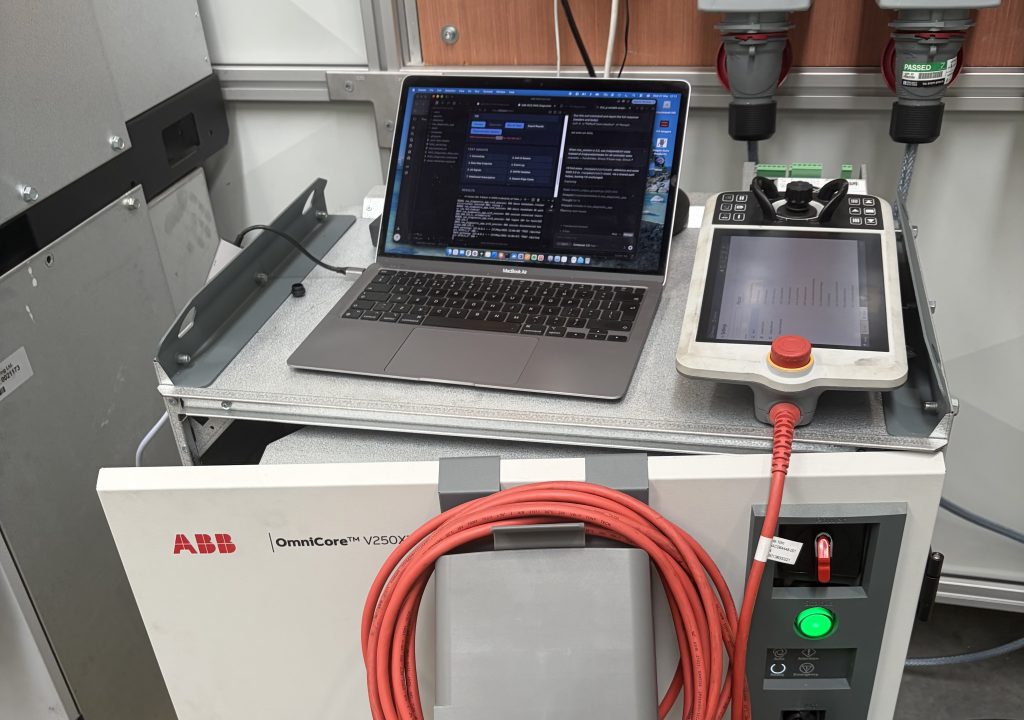

OmniCore is ABB’s newest controller generation. But like any robots, once the factory lights go out they’re effectively invisible. If a robot faults overnight, production stays down until somebody physically notices.
RoboVigil connects directly to the OmniCore and gives you live visibility of what the robot is doing, from anywhere. Open the app and you can see controller state, operating mode, program execution, I/O signals, speed ratio, and the event log — all continuously updated. Connect any standard RTSP IP camera and you get a live view of the cell too.
The difference between watching and being watched: you don’t need to have the app open. If the robot hits a protective stop, loses a fieldbus connection, or throws a collision detection error, RoboVigil sends a push notification to your phone and stores a camera snapshot from the moment it happened — so you can immediately see whether the cell is blocked, waiting for parts, or in a state that needs someone on site. When the fault clears, the alert auto-resolves.
How the Connection Works
Every ABB OmniCore controller runs RobotWare 7 and has a built-in API called Robot Web Services (RWS 2.0). It ships as standard — no software options needed. RoboVigil’s connector uses RWS 2.0 to read robot data live.
The connector is read-only. It never requests mastership of the controller. It cannot start or stop programs, move the robot, or change configuration.
The Physical Setup
The OmniCore has a management port — the MGMT Ethernet connector on the controller. It sits on its own private network, separate from any factory LAN, PROFINET, or EtherNet/IP network the robot might be on.
You connect the MGMT port to a router running WireGuard, which creates an encrypted VPN tunnel back to RoboVigil’s cloud. RoboVigil generates a WireGuard configuration file for each site — you download it from the app and import it into your router. All traffic between the factory and RoboVigil travels inside this tunnel. Nothing is exposed.
Option 1: Your Existing Router (Preferred)
If your factory has an internet connection and a router that supports WireGuard — MikroTik, Ubiquiti, pfSense, OPNsense, and others — you may not need any new hardware at all.
- Import the .conf file into your router’s WireGuard client
- Connect the OmniCore’s MGMT port and an IP camera to the router’s local network (via a small switch if needed)
That’s it. If your router doesn’t support WireGuard natively, a security gateway like the GL.iNet Brume 2 (around £50–80) plugged into your existing internet does the same job.
Option 2: Teltonika RUT200 (No Factory Internet Needed)
If there’s no internet at the cell, or IT won’t allow monitoring traffic on the factory network, the Teltonika RUT200 provides its own connection over 4G cellular.
The RUT200 is a compact industrial router with native WireGuard support. It takes a SIM card and connects over 4G LTE, covering all major UK frequencies. It has two Ethernet ports — one for the OmniCore’s MGMT port, one for an IP camera. You’ll need to reconfigure the WAN port as a second LAN port in the RUT200’s web interface so both devices sit behind the WireGuard tunnel. The entire setup is self-contained and has no involvement with the factory’s IT infrastructure.
- Insert a data SIM card
- Import the .conf file into the RUT200’s WireGuard client via its web interface
- Plug one Ethernet port into the OmniCore’s MGMT port, the other into a camera
- Power it up
The RUT200 costs around £100–120 plus whatever your SIM data plan costs. There are other 4G and 5G options in RoboVigil’s User Guide.
What You Don’t Need
- No software options — RWS 2.0 ships as standard on every OmniCore
- No software on the controller — no RAPID modules, no configuration changes, nothing loaded onto the robot
- No on-premises server — no gateway PC, no edge server, no middleware
- No SCADA system — RoboVigil connects directly to the robot
- No changes to the factory network — the MGMT port is already isolated, and the WireGuard tunnel runs through your existing internet or 4G
IRC5
Running IRC5 robots as well? RoboVigil has a connector for the IRC5 that works in the same way over RWS 1.0 — see our IRC5 guide. Our software has been tested on IRC5 and OmniCore controllers at ABB in the UK, and a mixed fleet appears in a single view: same alerts, same production timeline, same app.
Typical Setup Time
A standard OmniCore installation takes less than 30 minutes: Import the WireGuard config into your router, connect the router to the MGMT port, register the controller in RoboVigil and add a camera. No robot programming and no production downtime required.
RoboVigil is designed to reduce unnoticed downtime and unnecessary callouts by making robot issues visible immediately and much easier to diagnose.
Getting Started
- Create an account at app.robovigil.com
- Check whether your existing router supports WireGuard
- Download the RoboVigil app — App Store, Google Play, or Amazon Appstore
- Create a factory and download your WireGuard configuration
- Import the .conf file into your router or gateway
- Enter the robot’s details into Machine Setup in RoboVigil
- Test the connection, read from controller to populate the variable table and save
- Connect a standard RTSP IP camera to the cell
- Enter the camera’s details in Camera Setup – test connection and save.
- Done
Any Questions?
Contact: hello@robovigil.com
RoboVigil is a cloud-based machine monitoring platform for industrial robots and CNC machines. Software only — off-the-shelf IP cameras, your existing router, nothing installed on the machine. robovigil.com