
Your team doesn’t need to leave Teams to know a machine is down. RoboVigil now posts every fault alert for a factory straight into the channel you choose.
The push notification on your phone is still the primary way RoboVigil tells you a machine has a problem — it’s immediate, it’s personal, and it follows you out of the building. But if your company runs on Microsoft 365, Teams is where everyone already is. Maintenance channels, production channels, a channel per site. The alert should be there too.
How It Works
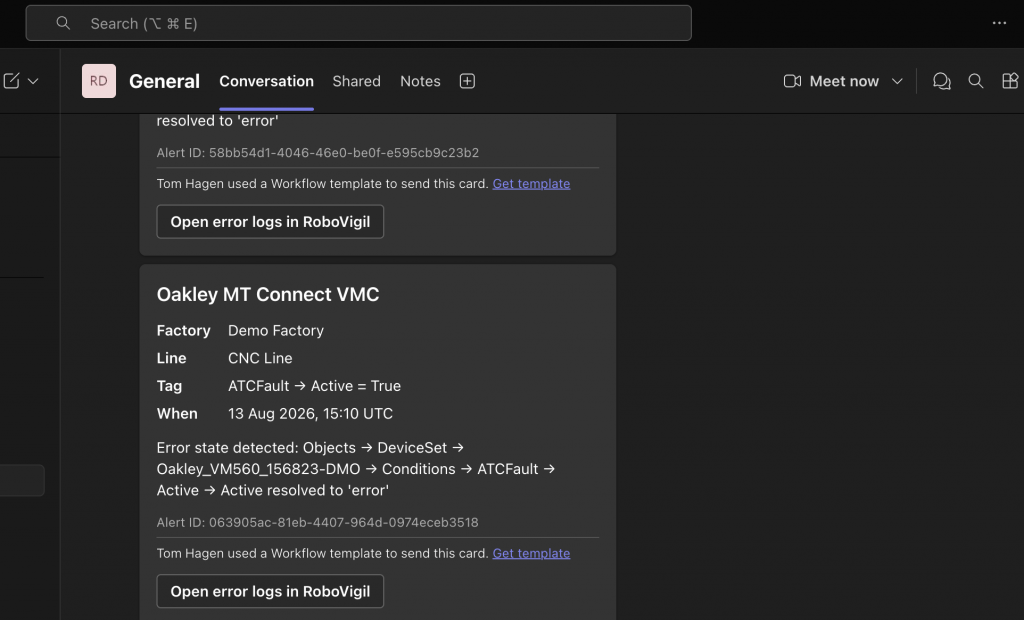
You store one Teams webhook URL against a factory in RoboVigil. From that moment, every alert for that factory posts to the channel you chose as a card — machine name, factory, line, the tag that triggered it, when it happened, a description, and a button that opens the error log in RoboVigil. The card gives the alert time in UTC, and Teams stamps every message in your own local time, so you get both.
There’s no per-user setup and no notification preferences to manage. Anyone who wants the alerts joins the channel. Anyone who doesn’t, doesn’t. The channel membership is the distribution list.
Do Not Disturb
Do Not Disturb and muting in the RoboVigil app apply to your personal push notifications only. Channel posts are factory-wide and unaffected — the channel always gets the alert, even when your phone is set to stay quiet overnight. That’s deliberate. Your DND settings are about you; the channel is about the factory.
Setting It Up
It takes about five minutes, all inside Teams:
- In Teams, open the Workflows app (search for it under Apps if it isn’t pinned)
- Choose the template Post to a channel when a webhook request is received
- Pick your team and channel, create the workflow, and copy the URL it gives you
- In RoboVigil, open Factory Configuration, tap Teams alert webhook, paste the URL and save
Saving sends a test card to the channel. RoboVigil only stores the URL if that test succeeds — so if you see the card appear in Teams, you know the whole path works. No saving something broken and finding out during a fault.
If you’ve set up Teams webhooks before, note that the old Incoming Webhook connectors were retired by Microsoft in 2026. Workflows is the current mechanism, and the steps above are all there is to it. Alerts arrive posted by the Workflows bot — that’s how Teams delivers webhook messages, and it’s normal.
The full walkthrough with screenshots is in the app’s user guide.
Why a Channel and Not Individual Messages
Because a machine fault isn’t personal. When a robot stops at 2am, the question isn’t “who was subscribed” — it’s “who saw it and who’s dealing with it.” A channel gives you that: the alert lands once, everyone sees the same thing, and the conversation about what to do happens right underneath it in the thread. A record of who did what, written as it happened.
It also reaches people who’d never install another app. If your company is on Microsoft 365, the engineers, maintenance leads and managers who need these alerts already have Teams open all day. The alert goes where they already are.
Using Slack Instead?
The same feature exists for Slack — see Send Machine Fault Alerts to Slack with RoboVigil. You can configure both on the same factory if your teams are split across the two.
Teams alerts are live today on every RoboVigil factory. Open Factory Configuration, add your webhook, and put machine faults in front of everyone who needs to see them.
Any questions: hello@robovigil.com